Runway has made video upscaling super easy. It can make the video sharper, clearer, and more professional without hassle. On top of that, Runway is fast, easy, and doesn't require any technical skills.
Curious? In this guide, you'll learn exactly how to upscale video in Runway with simple, step-by-step instructions. That’s not all. As a bonus, you will also learn about TikTV.AI’s video upscaler which is now a go-to choice for people who want to turn poor-quality videos into something exceptional. Let's begin!
How to Upscale Video in Runway
Upscaling a video in Runway is fast and easy. You don't need any editing experience. The AI does all the work, and you just follow a few simple steps.
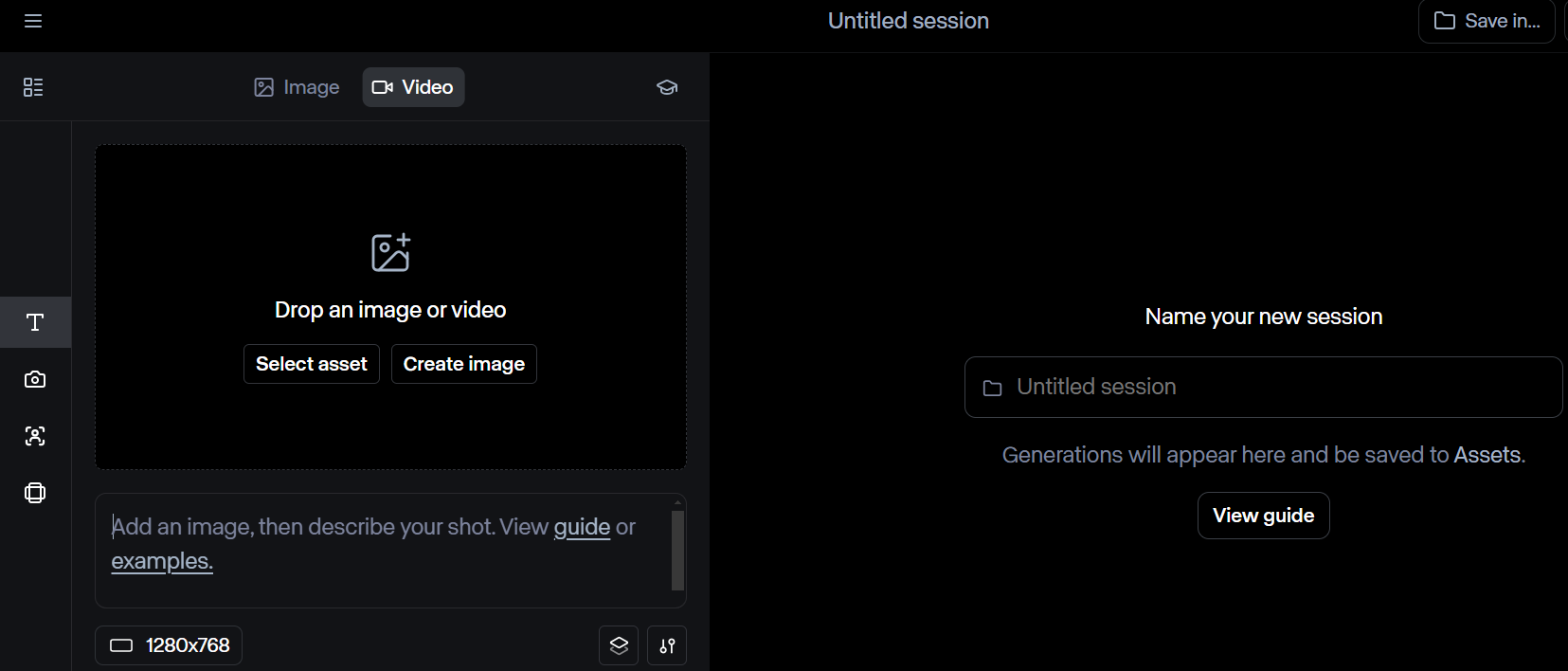
Step 1: Select an Asset or Generate a Video
Head over to Runway’s official website. The first step is to select an already existing asset or generate a video using Runway. Runway’s upscaling feature only works on videos made in Runway. If your video was created elsewhere, you won’t be able to upscale it here.
Step 2: Find the “Actions” Menu
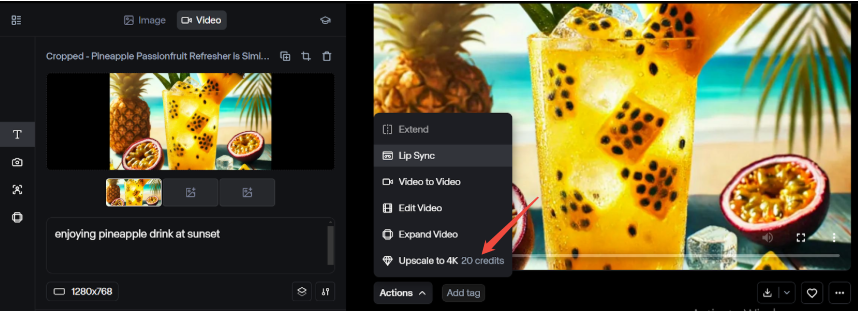
Once your video is finished, go to the Actions menu. Directly click on the upscale to 4K button.
Step 3: Start Upscaling
When you select the upscale option, choose the resolution you want. If you need the best quality, select 4K.
Runway will:
- Add extra details
- Sharpen edges
- Improve textures
The total processing time depends on the length of your video.
Once it's done, you can preview the final results. If you're happy with the video after upscaling, download it to your device and use it however you want.
Limitations of Runway’s Upscaling
Runway's upscaling is useful, but it has some downsides you should know about.
Let's look at these downsides in detail:
Upscale Videos Generated by Runway Only
Runway’s upscaling feature only works with videos created inside its platform, which can be pretty limiting. If you already have a video from another source, you won’t be able to upscale it here.
This can be frustrating if you're hoping for a simple way to upscale any video.
Only Available for Paid Users
Runway's upscaling is not free. While the platform offers some basic features for free, upscaling videos requires a paid subscription. You can only create videos in 720P if you have a free plan.
Limited Control Over Video Enhancements
Runway only increases resolution—it doesn't fix everything. If your video is blurry, noisy, or has poor lighting, upscaling won't automatically make it look perfect enough.
You also can't manually adjust sharpness, noise reduction, or colors like you can in professional video editing software.
Introducing TikTV.AI's Video Upscaler
TikTV.AI's video upscaler is an ultimate tool that enhances video resolution with AI precision. If your video looks blurry, pixelated, or low-quality, TikTV.AI can sharpen the details, improve clarity, and upscale it to HD or even 4K scale. Unlike basic upscaling that just stretches the video, TikTV.AI fills in missing details so your video looks naturally sharp and high-quality.
Plus, TikTV.AI makes video upscaling easy and flexible. It works with MP4, MOV, and WEBM files, so you don't have to worry about file compatibility. Just upload your video, and TikTV.AI takes care of the rest.
How to Use TikTV.AI’s Video Upscaler
Upscaling a video in TikTV.AI is simple and requires no technical skills. Follow these detailed steps to get a sharp, high-quality upscaled video in just a few minutes.
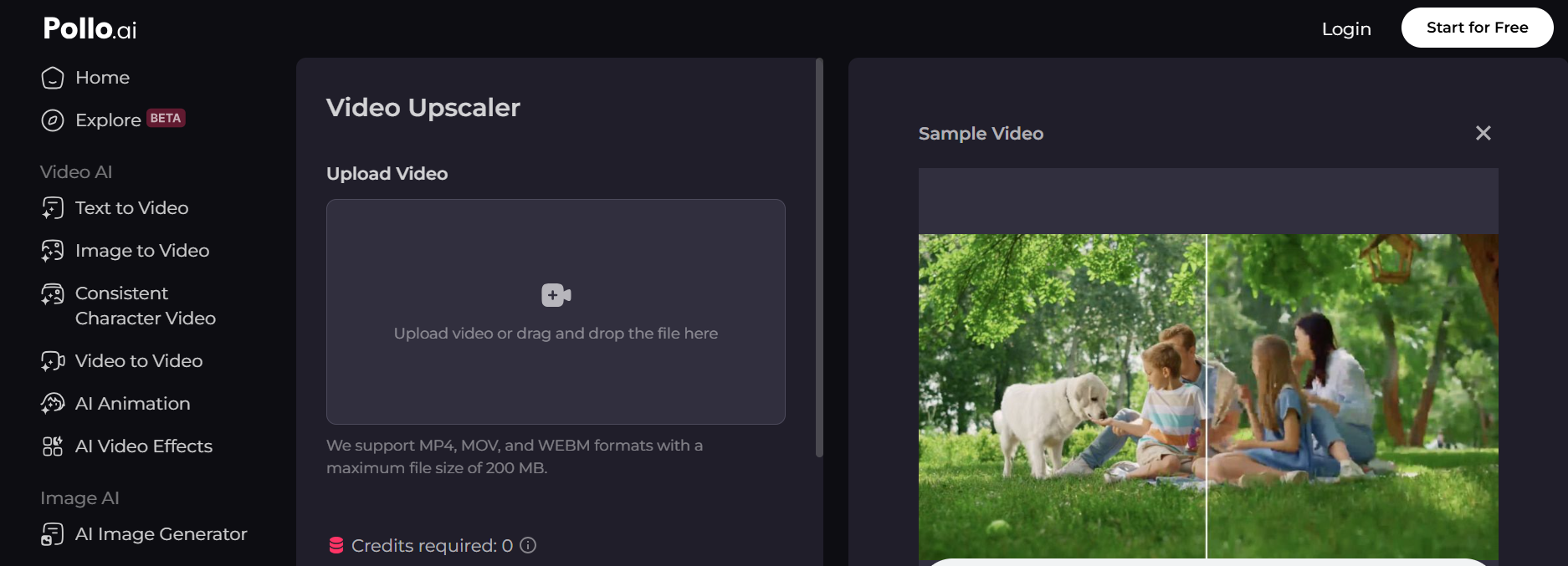
Step 1: Head Over to the Video Upscaler in TikTV.AI
Navigate to TikTV.AI's Video Upscaler to begin enhancing your videos to stunning 4K resolution with ease.
Step 2: Upload Video
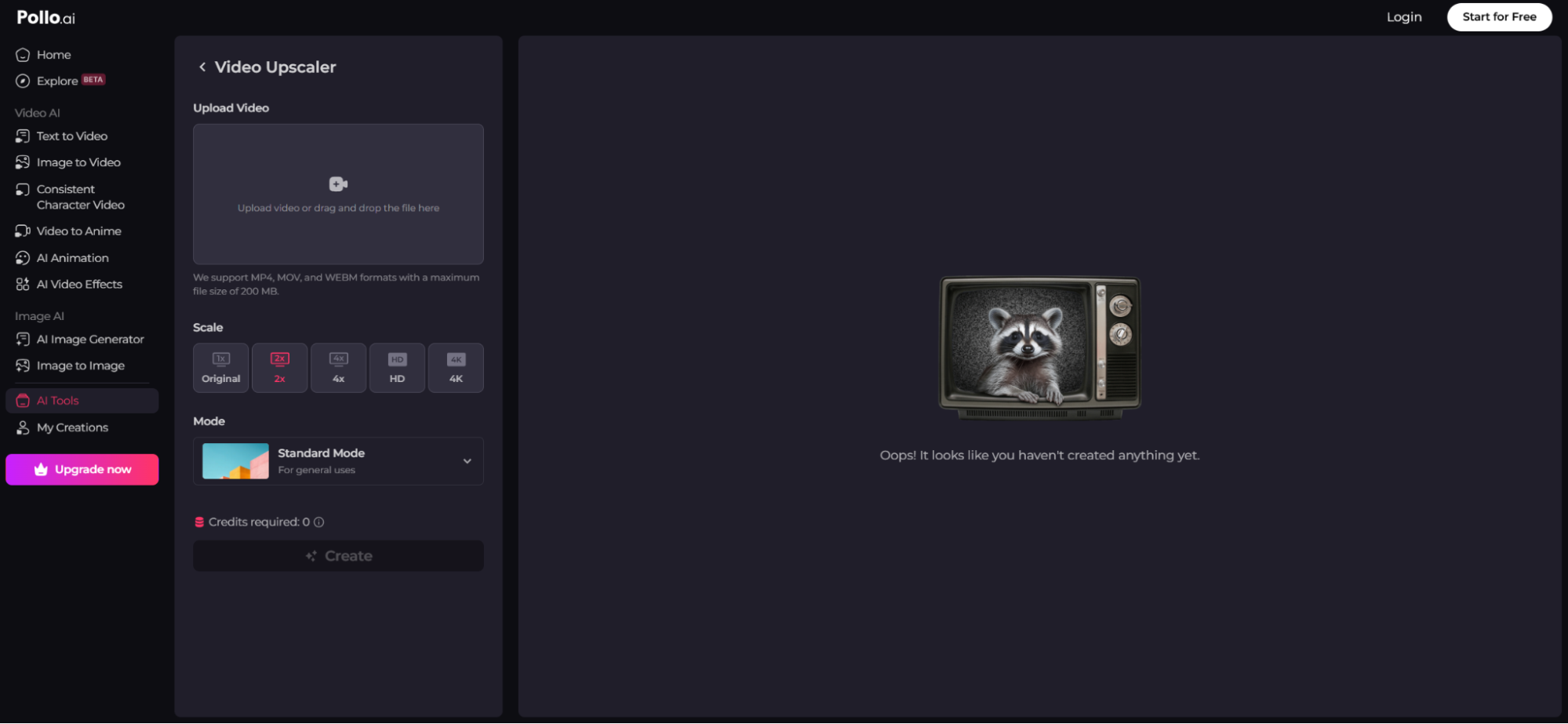
Now, it's time to upload your video. TikTV.AI supports popular formats like MP4, MOV, and WEBM, so you don't need to worry about converting your file beforehand. However, keep in mind that the maximum file size is 200MB.
Step 3: Choose Scale and Mode, Then Click Create
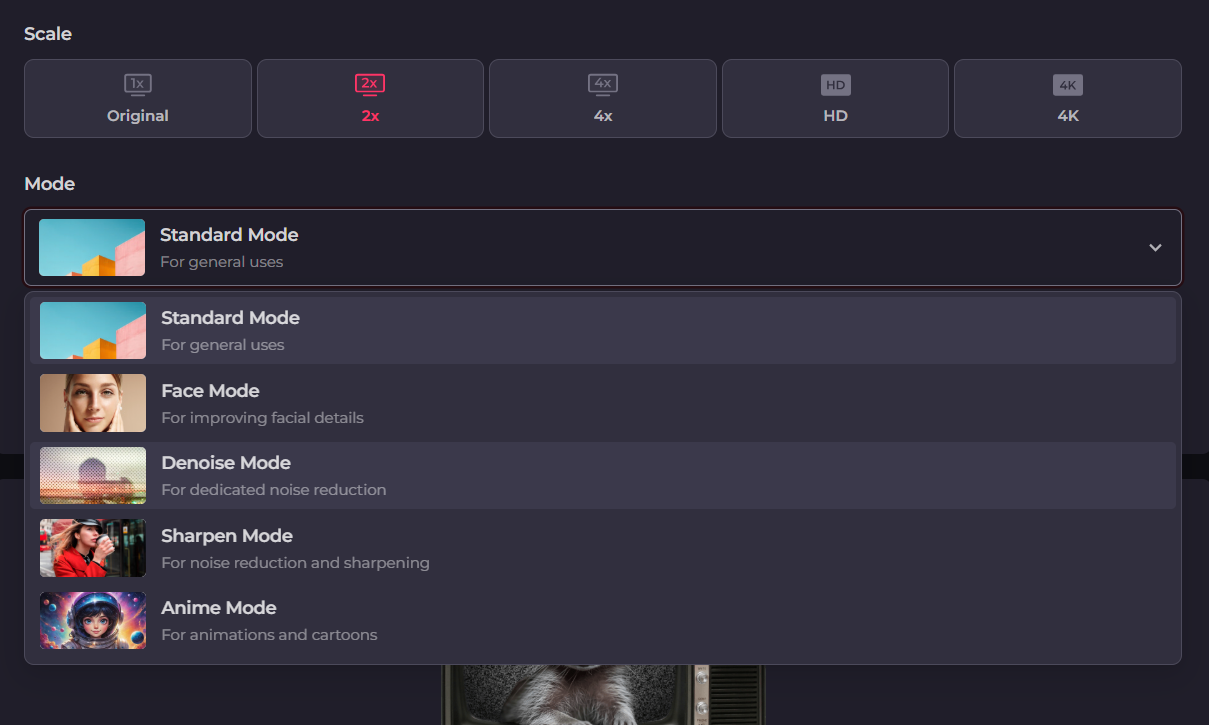
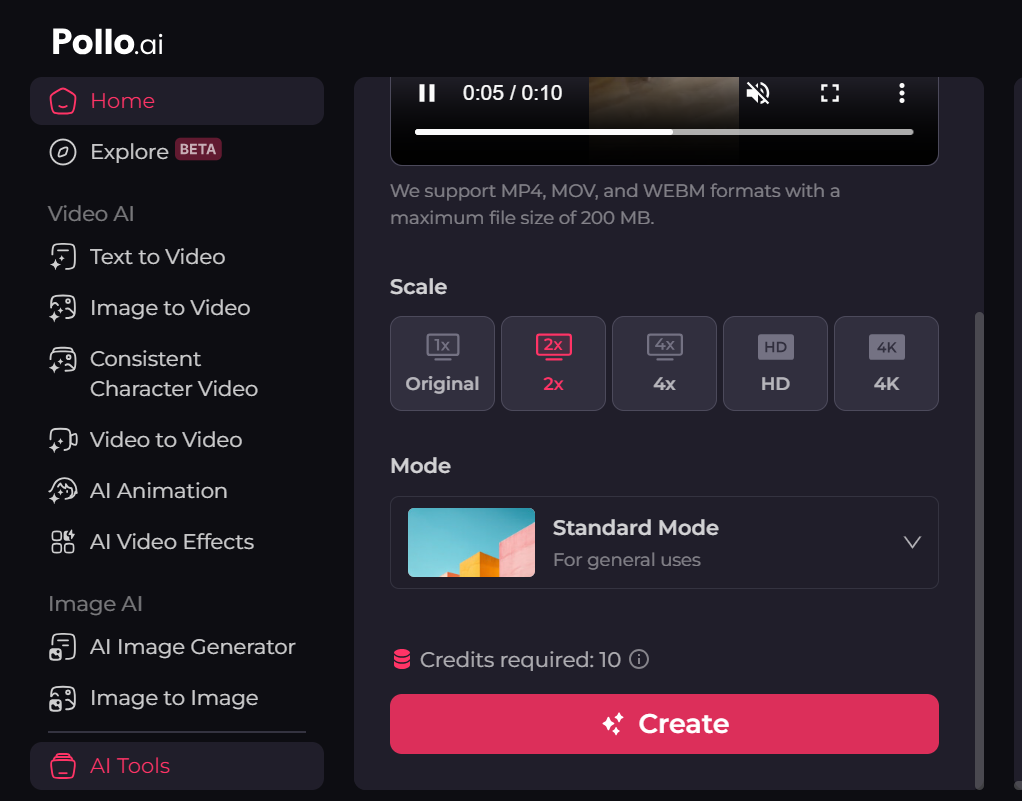
This is where TikTV.AI gives you control over how your video is upscaled. First, choose the upscaling level—you can select 2x, 4x, HD, or 4K, depending on how much improvement you need.
Next, choose the enhancement mode:
- Standard – General improvement for all video types
- Face – Specially enhances facial details for people in the video
- Denoise – for dedicated noise reduction
- Sharpen – for noise reduction and sharpening
- Anime – Optimized for animations and cartoons
Once you've selected the right settings, click "Create" and let TikTV.AI process your video. This may take a few moments, depending on the length and the final resolution you want.
Step 4: Download the Upscaled Video
After TikTV.AI completes the upscaling process, you'll get a preview of the enhanced video. If you're happy with the results, click "Download" to save the final file.
Your upscaled video is now ready to be used on social media or any other platform. Since TikTV.AI has intelligently added details, the video will look much sharper and more professional than before.
Other Key Features of TikTV.AI
Once you've upscaled your video, don't stop there. “Video upscaler” is just one of the powerful tools in TikTV.AI. Whether you want to create, edit, or enhance videos, TikTV.AI offers a complete suite of tools to bring your ideas to life.
Some of the other powerful features include:
- Text to Video – Create videos from text prompts in minutes
- Image to Video – Convert still images into dynamic motion videos
- Video to Video – Transform an existing video into any style you want
- Consistent Character Video – Maintain perfect subject consistency across video frames
- Video Enhancement Tools – Upscaling, denoising, face enhancing, and more
- 40+ Video Effects – Professional video templates to fulfill your any imagination
Simply put, TikTV.AI gives you everything you need to create high-quality content without the extra effort.
Conclusion
Upscaling videos with Runway is a simple and effective way to improve video quality. But if you want a better upscaling experience, go for TikTV.AI.
You can directly upload your targeted video to the platform. The best part? You will get professional-quality results every time. So, are you ready to bring your low-quality videos back to life? Try TikTV.AI’s video upscaler today and turn your blurry clips into stunning, high-resolution videos with just a few simple steps!